

Create an account
Go to arkdock.arklex.ai and sign up with your work email. Click the verification link in the email you receive to activate your account.If your team already has an organization, ask an Owner to invite you from Settings > Members instead.
Connect an agent
Navigate to Agents and click Connect Agent. Enter a name, select the API type (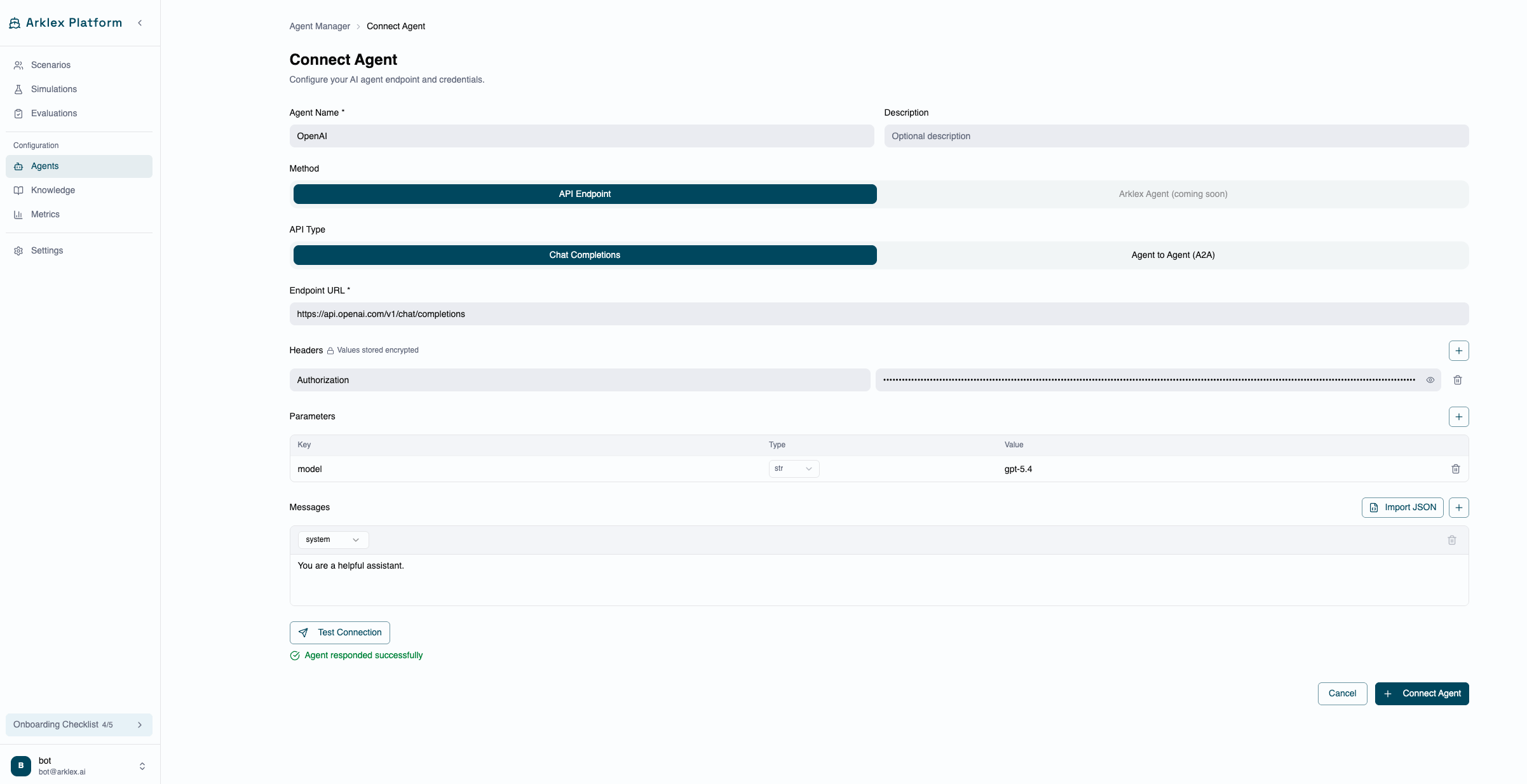
Chat Completions for most agents), and paste your endpoint URL. Add any auth headers your endpoint requires, then click Test Connection. Save when the connection is confirmed.Create scenarios
Navigate to Scenarios and click Add Scenarios. Choose Generate to have Arkdock create scenarios from a description of your agent and its users, or choose Import to upload an existing file. Save the scenarios to a group.
Run a simulation
Navigate to Simulations and click New Simulation. Select your agent and the scenarios you just created, then click Run Simulation. Arkdock runs each scenario as a full multi-turn conversation and shows the transcripts when done.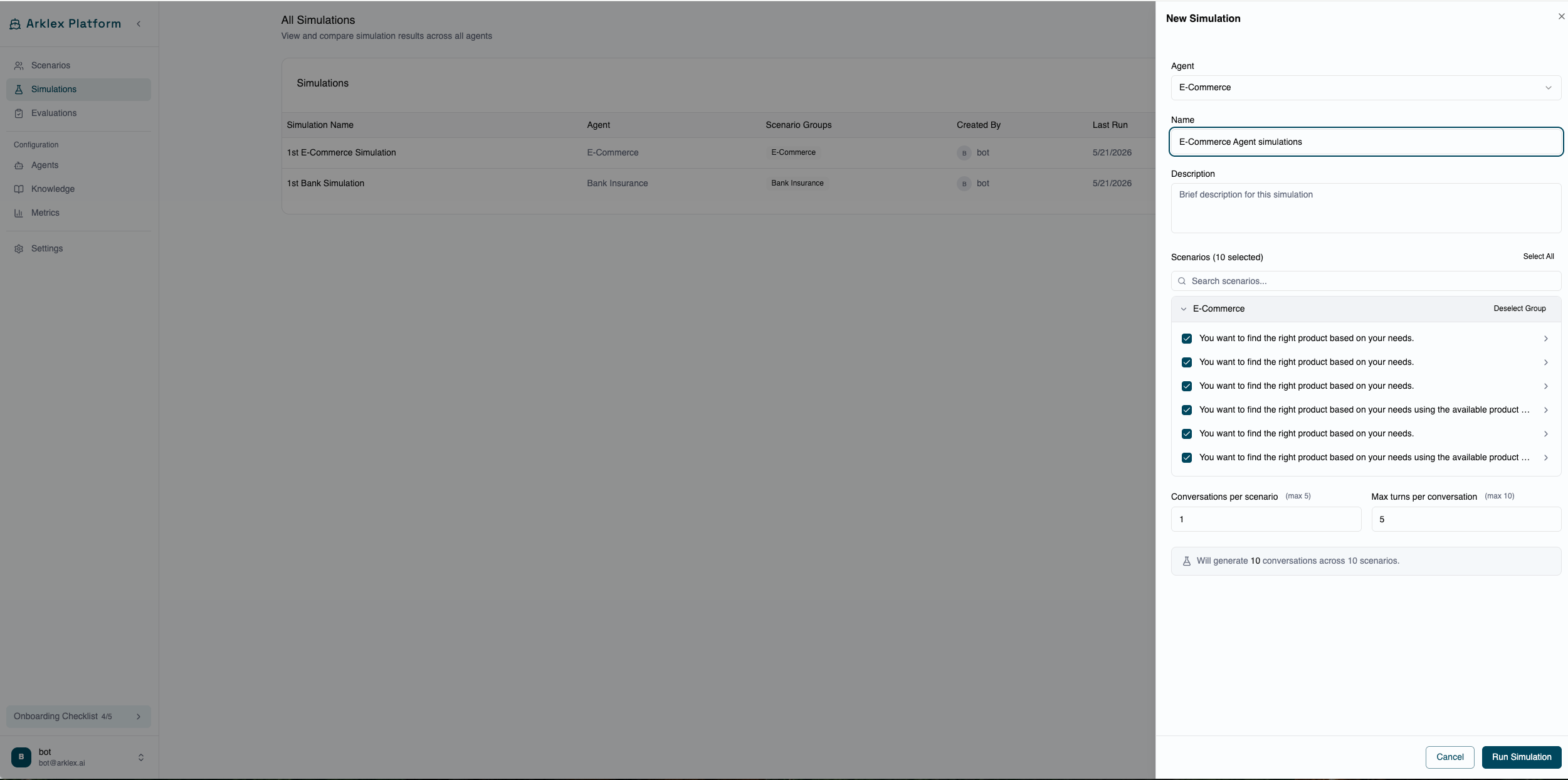
Run an evaluation
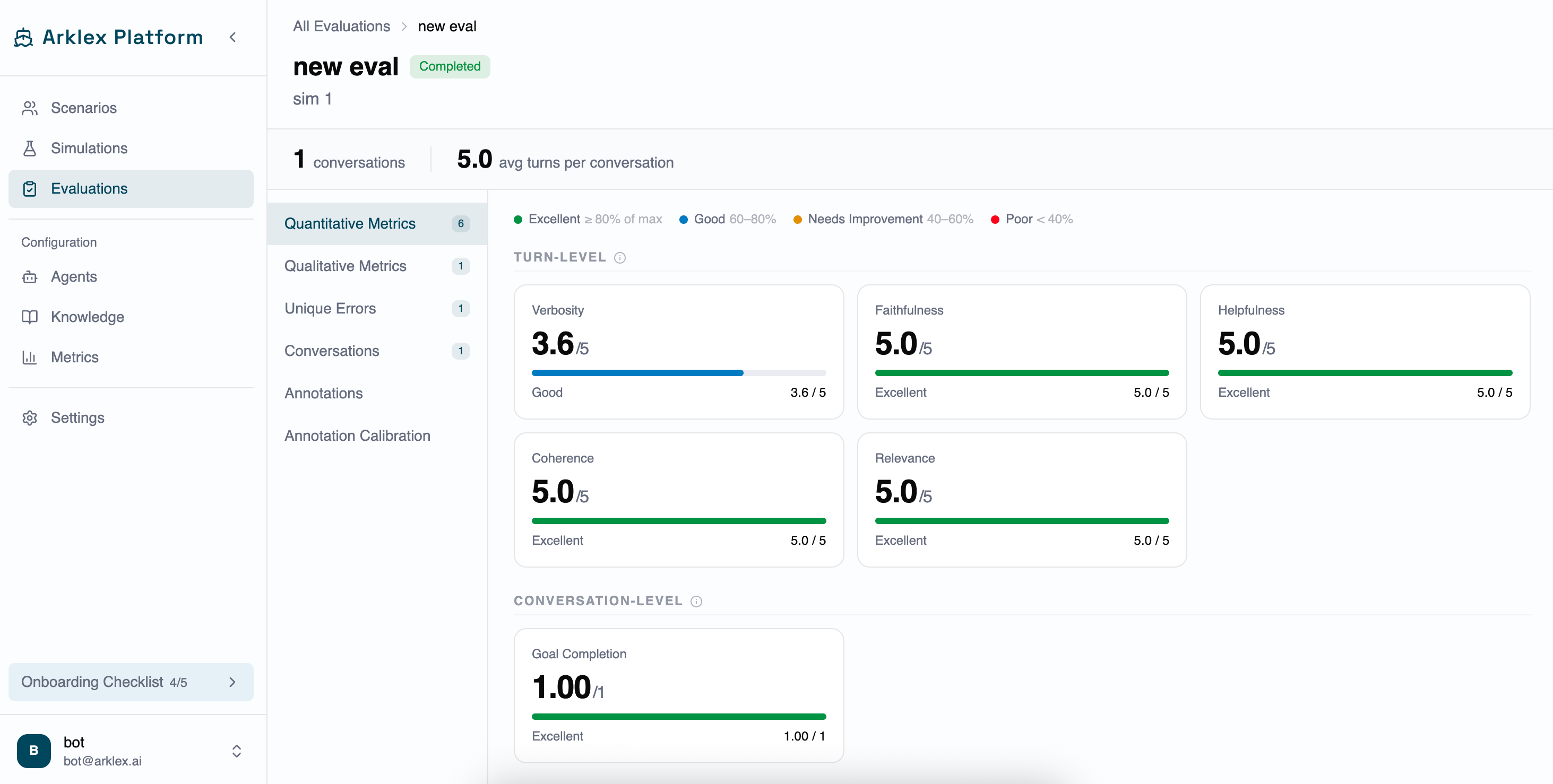
Once the simulation shows Completed, navigate to Evaluations and click New Evaluation. Select the simulation, choose your metrics (Goal Completion is always included), and click Run Evaluation.
Next steps
- Customize metrics to score domain-specific behaviors.
- Upload knowledge documents to ground simulated users in your product content.
- Invite teammates to annotate and calibrate evaluation results together.